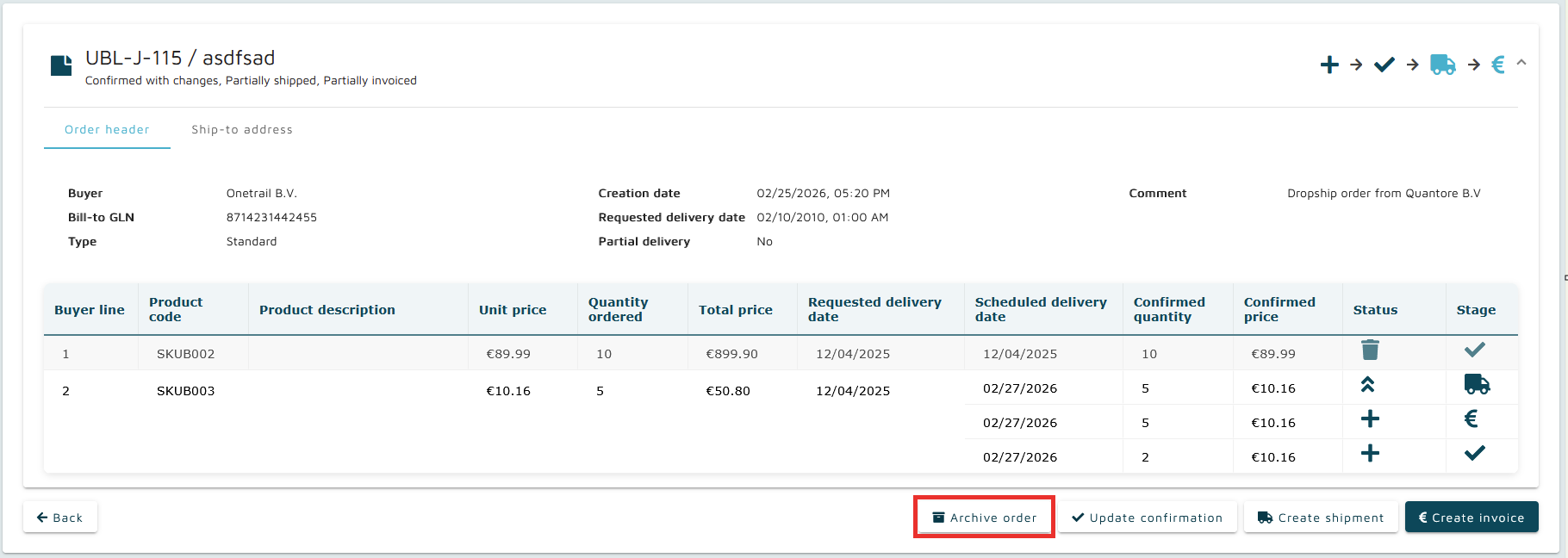
Archiving removes an order from the active workflow and hides it from the Ongoing section of the Orders Overview screen.
Archived orders cannot trigger any further actions; the only available operation is to unarchive them.
The primary method is through the Order Details screen. Applying the Archive action moves that order to the Archived section of the Orders Overview screen.
After the action is executed, a modal confirms that the order has been archived.
Bulk archive orders
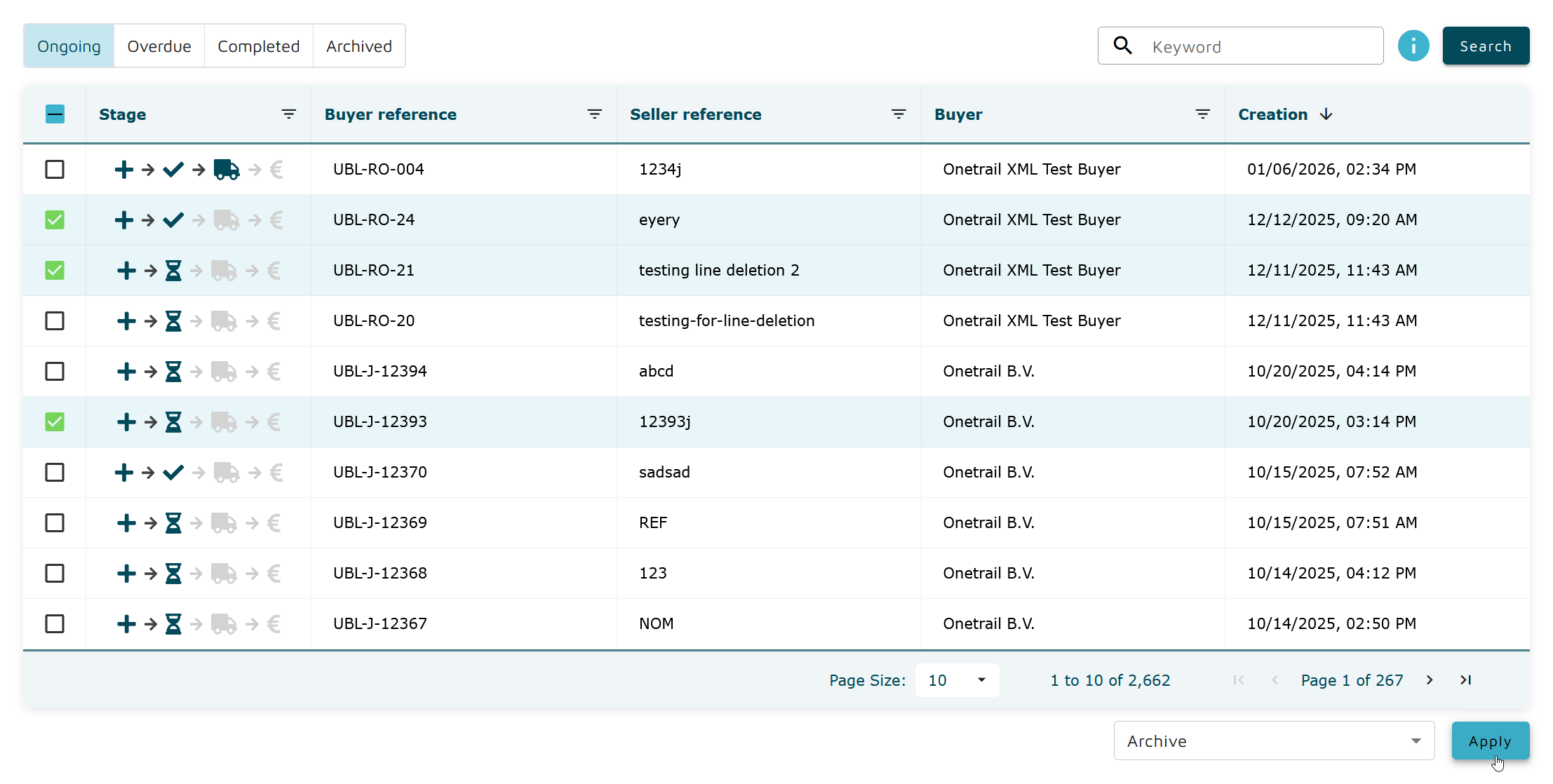
It is possible to archive multiple orders at once directly from the Orders Overview.
In the Ongoing orders tab, multiple orders can be selected from the table by checking the checkboxes on the left side. After selecting the desired orders, choose Archive from the "Bulk actions" dropdown at the bottom right of the screen and click the Apply button.
By clicking Apply, all selected orders will be archived immediately. A notification message will appear indicating the result of the operation:
If all orders were archived successfully, a success message is displayed
If some orders failed to archive, a partial success message is displayed listing the failed orders
If all orders failed, an error message is displayed